That little orange notification circle in your WordPress dashboard isn’t just a UI element. It represents a choice. You can ignore it and invite obsolescence. Or, you can click it and risk catastrophe. For many, this choice induces pure anxiety. You know you must update. You have heard the security warnings. Yet, you remember the last time you clicked “Update.” The result? The dreaded “White Screen of Death” (WSOD).
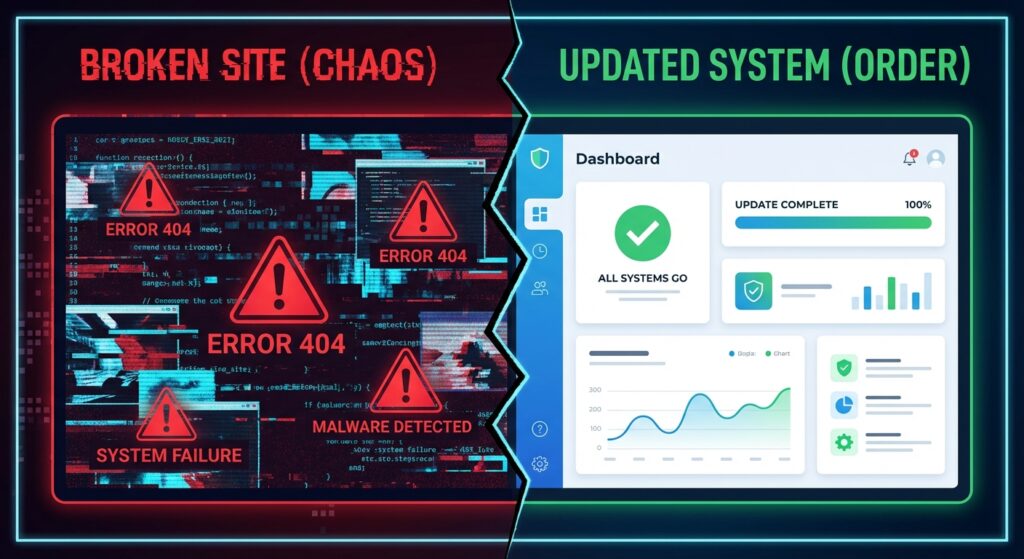
The fear is valid. Your website is your digital storefront. It is your lead generation engine. Breaking it is not an option. However, fear is a poor management strategy. It paralyzes action. Consequently, your site becomes vulnerable. This is unacceptable.
What if the problem isn’t the software, but your process? You need a repeatable, stress-free system. A checklist that turns a threat into a routine task. This guide provides exactly that. We will define a comprehensive WordPress safe update process. This protocol protects your data. It prevents downtime. It keeps your site secure. Forget the guesswork. It is time to engineer the anxiety out of the equation.
Why Ignoring Updates is a Failure of Strategy
Before we discuss the “how,” we must address the “why.” Skipping updates because you fear breakage is a strategic error. In fact, it is one of the biggest mistakes a site owner can make. The digital world does not stand still. Stagnation is actually degradation.
- Security Vulnerabilities: This is the primary driver. WordPress powers over 43% of the web. Therefore, it is a prime target. Developers release updates to patch holes. An outdated site is an open door for malware. You are essentially inviting a breach.
- Performance Improvements: Code gets cleaner. Updates often include optimizations. These make your website load faster. A faster site improves user experience. Additionally, it positively impacts your Core Web Vitals.
- New Features: Updates are not just about fixes. They introduce new tools. These can improve your site’s capabilities. Why work harder with old tools?
- Bug Fixes: Glitches are annoying. They frustrate users. Updates eliminate these friction points.
Ignoring updates ensures your site will eventually break due to incompatibilities. A structured WordPress safe update process is the only sustainable path.
The Pre-Update Protocol: Preparation is Everything
Proper preparation is 90% of the battle. Rushing this stage causes disasters. You cannot simply hope for the best. You must ensure success. Follow these steps before you touch the update button.
Step 1: Full Website Backup (The Non-Negotiable)
If you learn one thing here, let it be this. Always back up your website before changing anything. A backup is your time machine. It allows you to revert your site instantly if things go south.
Your backup must include two components:
- Your Website Files: This includes WordPress core, themes, plugins, and media.
- Your Database: This stores content, settings, and users.
Use a trusted backup plugin. UpdraftPlus is a solid choice. Many hosts also offer automated backups. However, do not rely solely on your host. Ensure you have a recent copy stored off-site. Google Drive or Amazon S3 work well. For complex database setups, understanding how to manage database upgrades is also wise.
Step 2: Establish a Staging Environment
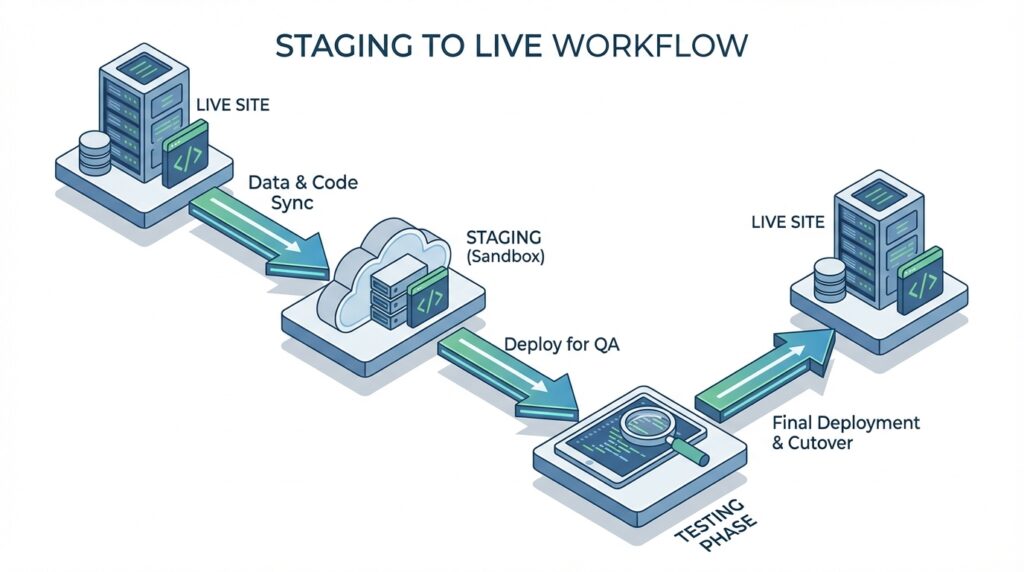
Testing on production is reckless. A staging site is a private clone of your live website. It is a sandbox. Here, you can break things safely. If an update fails on staging, no one knows. You can fix it without panic.
Most managed WordPress hosts provide one-click staging. If yours does not, use a plugin like WP Staging. Running updates on staging first is essential to a professional WordPress safe update process.
Step 3: Analyze the Changelogs
Every update has a “changelog.” This is data, not noise. Read it. It tells you what changed.
- Does it fix a security hole?
- Does it add features?
- Does it alter the database structure?
Reading the changelog helps you anticipate conflicts. For instance, if a plugin overhauls its API, you must test your integrations. This aligns with API security best practices.
Executing the Protocol: Step-by-Step
Your backup is safe. Your staging site is ready. Now, we execute. Do not rush. Follow the sequence.
Step 4: Update Staging Sequentially
Go to your staging dashboard. Do not click “Update All.” That is gambling. Update items in a specific order to isolate variables.
- Plugins First: Update plugins one by one. Check the site after each. This identifies the exact culprit if something breaks.
- Themes Second: Once plugins are stable, update your theme. If you use a child theme, update the parent.
- Core Last: Finally, update WordPress itself. This ensures the foundation supports the updated components.
This method allows for immediate diagnosis. You control the variables.
Step 5: Rigorous Testing
The update is done. Now, we verify. Do not just look at the homepage. Be systematic. Create a QA checklist.
- Visual Check: Scan key pages. Homepage, About, Contact. Look for broken layouts.
- Functional Check: Test forms. Can you submit data? If you sell products, buy one. Test the checkout flow.
- Backend Check: Can you edit posts? Does the media library load?
If you rely on rich snippets, ensure your structured data is still intact. Updates can sometimes strip custom code.
Step 6: Deployment to Live
Staging works. Now, deploy to live. You have two options. You can push the staging site to live (if your host supports it). Or, you can repeat the update steps on the live site.
Repeating the manual steps is often safer. It reduces the risk of overwriting new database entries (like comments or orders) that occurred while you were testing. Backup the live site again. Then, update plugins, themes, and core. Spot check once more. You are done.
Troubleshooting: When the System Fails
Even with a perfect protocol, anomalies occur. Do not panic. You have a system for this too.
Isolate the Variable
If the site breaks, it is likely a plugin conflict. Use FTP or your file manager. Go to wp-content. Rename the plugins folder to plugins_old. This deactivates everything. Does the site load? If yes, a plugin is the cause. Reactivate them one by one to find the offender.
The Nuclear Option: Restore
If you cannot fix it quickly, revert. Restore the backup from Step 1. This returns the site to its pre-update state. Your business continues. You can then investigate the issue offline without losing revenue.
The Infineural Advantage: Managed Systems
This process is safe. However, it is time-consuming. It requires diligence. For a business owner, time is equity. You should not be debugging PHP conflicts.
At Infineural Technologies, we manage this for you. We handle the WordPress safe update process end-to-end. We manage backups. We maintain staging environments. We perform regression testing. We ensure your site is secure and optimized.
Stop playing sysadmin. Focus on your product. Let us handle the infrastructure.
Frequently Asked Questions
1. How often must I update?
Update as soon as security patches release. For general updates, a weekly cadence is efficient.
2. Are automatic updates safe?
For minor versions, yes. For major releases, no. Always test major updates on staging first.
3. Will updates hurt my SEO?
Generally, they help by improving speed. However, a broken site hurts SEO instantly. This is why our process is vital.
4. What if I have custom code?
Custom code is fragile. It is the most likely thing to break during an update. Test thoroughly.
5. Can I skip versions?
Do not do this. Skipping versions increases the risk of conflict. Update incrementally.
6. Does PHP version matter?
Absolutely. WordPress relies on PHP. Ensure your server runs a supported PHP version before updating core.
7. Why did my site turn white?
This is a PHP error. Usually a plugin conflict. Check your error logs or deactivate plugins.
8. Do I need a maintenance plugin?
It helps. Putting your site in maintenance mode during live updates prevents users from seeing glitches.
Ready to eliminate the risk? Contact Infineural Technologies today. Let’s professionalize your web operations.