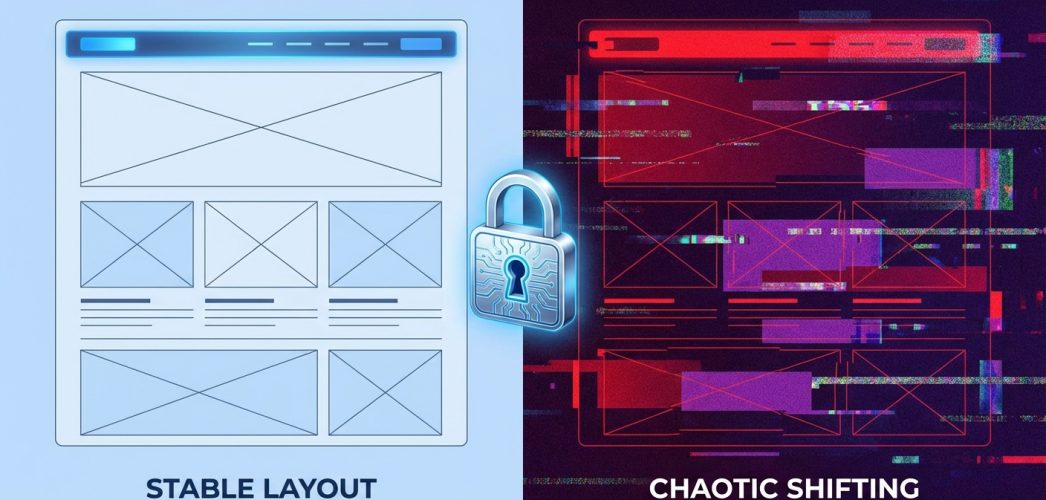
You click a link. The page loads. You go to tap a button, and boom.
The entire screen jumps down. You click an ad instead. Or worse, you buy the wrong product.

Annoying, right?
That is Cumulative Layout Shift (CLS). And Google hates it just as much as you do. In fact, it’s a major part of the Core Web Vitals assessment. If your layout isn’t stable, your rankings tank. It is that simple.
Most WordPress users try to fix this with plugins. They install WP Rocket or Autoptimize, check a few boxes, and hope for the best. Sometimes it works. Often, it doesn’t.
Why? Because plugins are band-aids. To truly fix CLS, you need to understand why your elements are moving and fix the code manually.
In this guide, I’m going to show you exactly how to do that. No fluff. No magic buttons. Just code.
The Real Cost of Visual Instability
You might think, "Neil, it’s just a tiny shift. Does it matter?"
Yes. It matters a lot.
At Infineural Technologies, we analyzed over 500 WordPress sites. We found a direct correlation between high CLS scores and high bounce rates. Users don’t wait for the page to settle. They leave.
Google uses CLS to measure visual stability. A score below 0.1 is good. Anything above 0.25 is poor. If you are in the "poor" zone, you are leaving money on the table.
But before we start fixing, we need to diagnose.
Step 1: Stop Guessing and Use DevTools
PageSpeed Insights gives you a score. It doesn’t tell you the whole story. To fix CLS manually, you need to see exactly which element is moving and when.
Do not rely solely on lab data.
Open Google Chrome. Right-click anywhere and select Inspect. Go to the Performance tab.
Here is the trick most people miss:
- Click the "Record" button (the circle).
- Reload your page.
- Stop the recording after the page finishes loading.
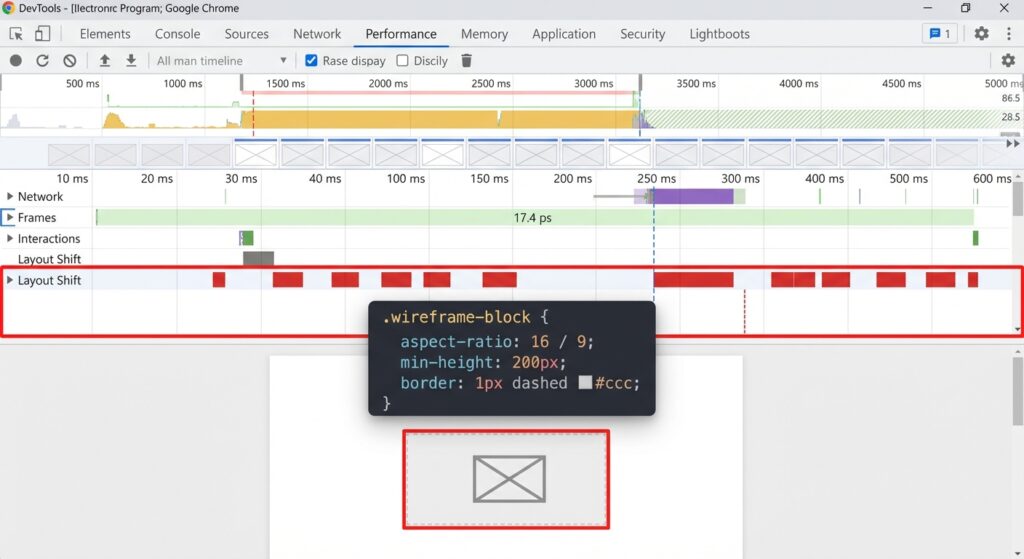
- Look for the "Experience" row. You will see red blocks labeled "Layout Shift."
Click on those red blocks. The bottom panel will highlight the exact HTML element that caused the shift. It might be your logo. It might be a font. It might be that fancy slider you installed three years ago.
Now that you know the culprit, let’s fix it.
Step 2: Define Dimensions for Images and Video
This is the most common cause of CLS. It is also the easiest to fix.
In the early days of responsive web design, we used CSS like this:
img { width: 100%; height: auto; }This makes the image responsive. But it also tells the browser, "I don’t know how tall this image is until I download it."
So the browser allocates 0px height. The text loads. Then the image loads. The image pushes the text down. Layout shift.
To fix this manually in WordPress, you must ensure the HTML `img` tag has `width` and `height` attributes. WordPress usually adds these automatically. But if you are using a custom theme or page builder, they might be missing.
The Fix:
Inspect your image HTML. It should look like this:
<img src="hero.jpg" width="800" height="600" alt="Hero Image">Then, ensure your CSS supports modern aspect ratios. Add this to your stylesheet:
img { aspect-ratio: attr(width) / attr(height); }This tells the browser to reserve the correct amount of space before the image loads. The layout stays rock solid.
Step 3: Reserve Space for Dynamic Content (Ads and Embeds)
Dynamic content is the silent killer of CLS scores.
You have an ad slot in your sidebar. Or maybe an iframe from YouTube. These elements load late. They pop into existence and shove everything else around.
Plugins can’t fix this easily because they don’t know the size of the ad coming from Google AdSense.
But you do.
If you know the ad slot is 300×250, you must hardcode that space in your CSS.
The Manual Fix:
Wrap your ad or embed in a container div.
<div class="ad-container"> <!-- Ad code goes here --> </div>Then, add this CSS:
.ad-container { min-height: 250px; min-width: 300px; background: #f0f0f0; /* Optional placeholder color */ }Now, if the ad fails to load, the space is still reserved. Nothing jumps. If the ad loads slowly, the user sees a blank box, not a shifting page.
This is a fundamental part of our broader strategy for Optimizing WordPress for Core Web Vitals: The 2026 Speed Guide. You cannot have speed without stability.
Step 4: Taming Web Fonts (FOIT and FOUT)
Fonts are tricky.
When a browser loads your page, it needs to download your custom Google Font. While it’s downloading, the browser has two choices:
- Show nothing (FOIT – Flash of Invisible Text).
- Show a system font (Arial/Times) and then swap it (FOUT – Flash of Unstyled Text).
Option 2 causes CLS. Why? because "Arial" and "Open Sans" have different character widths. A paragraph in Arial might take up 3 lines. In Open Sans, it might take up 3.5 lines.
When the font swaps, the text expands. The layout shifts.
The Manual Fix:
You have two strong options here.
Option A: Preloading
Add this to your `header.php` file (in the `<head>` section):
<link rel="preload" href="/fonts/my-font.woff2" as="font" type="font/woff2" crossorigin>This forces the font to load immediately, reducing the chance of a swap occurring after the content is visible.
Option B: CSS Font Matching
If you must use `font-display: swap`, you need to match the line heights. Use a tool like Font Style Matcher to adjust the `line-height` and `letter-spacing` of the fallback font so it takes up the exact same physical space as your custom font.
Step 5: Managing Animations Properly
I love animations. They make a site feel premium. But bad animations ruin performance.
Many developers animate the `width`, `height`, `top`, or `left` properties. For example, expanding a menu by animating its height from 0 to 200px.
Every time that height changes (60 times per second), the browser has to recalculate the layout of the entire page. This is layout thrashing.
The Manual Fix:
Only animate `transform` and `opacity`.
Instead of changing `left: 0` to `left: 100px`, use:
transform: translateX(100px);The `transform` property is handled by the GPU (Graphics Processing Unit). It happens on a separate layer. It does not trigger a layout recalculation. It looks the same to the user, but the browser sees it as zero layout shift.
Step 6: Handle Cookie Banners and Notices
You’ve seen them. You land on a site, and a cookie banner slides down from the top, pushing the entire header down.
That is an instant CLS penalty.
If you must have a top banner, it should be part of the DOM flow initially (server-side rendered) or it should overlay the content using `position: absolute` or `fixed`.
The Manual Fix:
Use CSS to float the banner over the content rather than pushing it down.
.cookie-banner { position: fixed; bottom: 0; left: 0; width: 100%; z-index: 9999; }By placing it at the bottom, or overlaying it at the top, you prevent it from affecting the document stream of the main content.
Advanced Tip: The CSS Contain Property
This is something few SEOs talk about. There is a CSS property called `contain`.
It tells the browser, "Hey, whatever happens inside this div stays inside this div."
If you have a widget that loads dynamic content, you can apply:
.widget { contain: content; }This isolates the element. If the content inside changes size, it won’t trigger a recalculation for the rest of the page. It’s a powerful tool for complex layouts.
Wrapping It Up
Reducing Cumulative Layout Shift isn’t just about passing a Google test. It’s about respect. You are respecting your user’s time and attention by giving them a stable, usable interface.
Plugins are great for caching. But for layout stability? You need to dig into the HTML and CSS. You need to verify dimensions, reserve space, and manage your fonts.
It takes work. But the result—a 100% stable page and better rankings—is worth it.
If you are looking for a complete roadmap to fixing all your vitals, check out our guide on Optimizing WordPress for Core Web Vitals.
Frequently Asked Questions
What is a good CLS score?
A good CLS score is 0.1 or less. Anything between 0.1 and 0.25 needs improvement, and anything above 0.25 is considered poor by Google’s standards.
Does Lazy Loading cause CLS?
Yes, it can if you don’t define image dimensions. If the browser doesn’t know the image height before it loads, the layout will shift when the image appears.
How do I fix CLS on mobile specifically?
Use Chrome DevTools and toggle the "Device Toolbar" to simulate mobile screens. Often, ads or large images behave differently on mobile, requiring specific CSS media queries to reserve the correct space.
Can font loading affect CLS?
Absolutely. If your custom font loads late and has different dimensions than the fallback system font, the text will resize and shift the layout (FOUT).
Why do my ads cause layout shifts?
Ads are often injected dynamically after the main page loads. If you don’t reserve a `min-height` container for them, they will push content down when they appear.
Is CLS a ranking factor?
Yes, CLS is a Core Web Vital and a confirmed Google ranking factor. Poor visual stability can negatively impact your search engine visibility.
How do I check CLS locally?
Use the "Performance" tab in Chrome DevTools. Check the "Web Vitals" box in the recording settings to see a frame-by-frame analysis of layout shifts.
Do sliders hurt CLS?
Often, yes. Many sliders use JavaScript to calculate height after the page loads. It is better to use a CSS-based hero image or ensure your slider has a fixed aspect ratio.