Is your Elementor site bleeding traffic?
It happens. You build a stunning page. It looks great. But Google PageSpeed Insights hates it.
Specifically, your Largest Contentful Paint (LCP) is in the red. Anything over 2.5 seconds, and Google starts penalizing your rankings. Why? Because users hate waiting. If your main content doesn’t load instantly, they bounce.
I’ve seen this thousands of times. Elementor is fantastic for design, but out of the box? It can be heavy. The code bloat, the excessive DOM size, the JavaScript execution—it all adds up.
But you don’t need to rebuild your site from scratch.
At Infineural Technologies, we’ve optimized hundreds of Elementor sites. We typically see LCP scores drop from 4s down to under 1.2s just by tweaking the specific way Elementor handles assets.
Here is exactly how to fix largest contentful paint on WordPress using Elementor, without losing your design.
The #1 Culprit: Lazy Loading the Hero Image
This is the most common mistake. And it’s ironic.
You install a performance plugin. You turn on "Lazy Load Images" to speed up the site. But you just killed your LCP.
Why?
LCP measures how long it takes for the largest element (usually your hero image or H1 heading) to appear. If you lazy load that image, the browser waits for the JavaScript to execute before it even starts downloading the image.
The Fix:
You must exclude your above-the-fold image from lazy loading. If you are using Elementor’s native image widget:
- Click the image.
- Go to the Advanced tab.
- Look for the attributes section (or use a plugin like Perfmatters).
- Add the class
no-lazyor equivalent depending on your caching plugin.
If you want a deeper dive into general LCP mechanics, check our guide on How to Fix LCP Web Vitals: 10+ Pro Fixes for 2026.
Switch to Elementor Containers (Flexbox)
Still using Sections and Columns?
Stop.
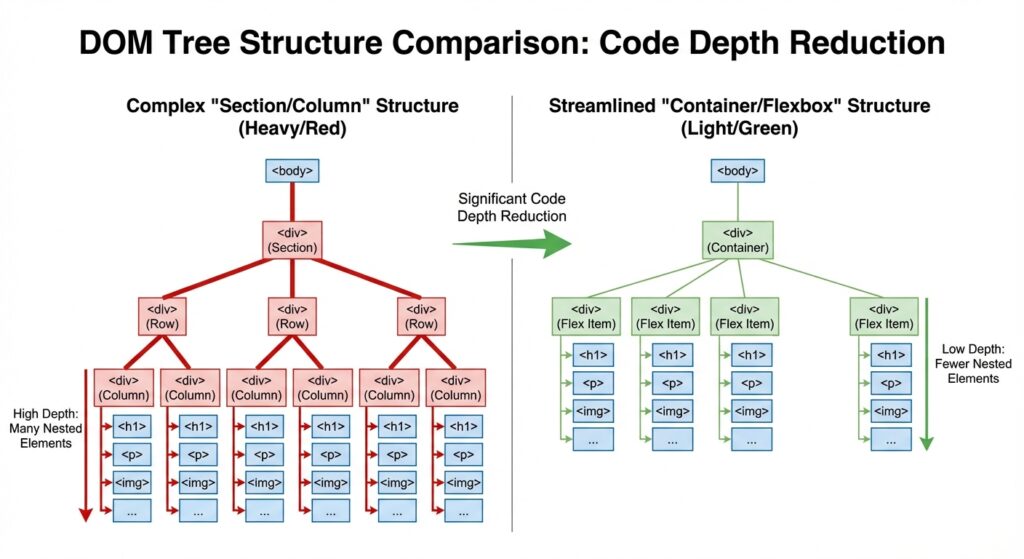
The old section-column-inner-section structure creates a massive DOM (Document Object Model) depth. It’s like wrapping a gift in ten different boxes. The browser has to unwrap all of them to find the content.
Why Containers win:
- Less Code: Containers use Flexbox and CSS Grid. Less HTML markup.
- Faster Rendering: The browser paints the page faster.
- Better LCP: A lighter DOM means the main content appears sooner.
Go to Elementor > Settings > Features and ensure "Flexbox Container" is active. Converting your old sections to containers can shave massive milliseconds off your load time.
Preload Your LCP Image
Sometimes, excluding from lazy load isn’t enough. You want the browser to start downloading that hero image before it even processes the CSS.
You can do this by adding a simple link tag in the <head> of your site.
The Code Approach:
You don’t need a heavy plugin for this. You can add a snippet to your functions.php file (or use a code snippets plugin):
<link rel="preload" fetchpriority="high" as="image" href="/wp-content/uploads/your-hero-image.jpg" type="image/jpeg">
This tells the browser: "This image is urgent. Download it now."
Just make sure you update the URL to match your actual hero image. This single trick often improves LCP by 20-30%.
Debloat Elementor Assets
Elementor loads a lot of stuff you don’t use. Google Maps scripts? YouTube API? Font Awesome icons on a page with no icons?
It’s unnecessary weight.
Step 1: Use Elementor’s Built-in Performance Tools
Navigate to Elementor > Settings > Features.
- Improved CSS Loading: Turn it on. It loads only the CSS needed for the widget you are using.
- Inline Font Icons: Turn it on. Instead of loading a huge font library, it renders icons as SVG.
Step 2: Selective Asset Loading
If you are serious about speed, you need to stop scripts from loading on pages where they aren’t needed. This aligns with API Security Best Practices—minimize exposure and load only what is necessary.
For example, don’t load the Elementor Form scripts on your blog posts if there is no form. This reduces the "Resource Load Delay" component of LCP.
Host Locally and Use a CDN
Are you using Google Fonts? Are they loading from Google’s servers?
That’s an extra DNS lookup. It slows you down.
In Elementor, turn on "Google Fonts Load" to Swap. Better yet, download the fonts and host them locally on your server. This cuts out the middleman.
And speaking of servers, your hosting matters.
If your Time to First Byte (TTFB) is slow, your LCP will be slow. It doesn’t matter how much you optimize Elementor if the server takes 2 seconds just to say hello.
Ensure you are using a host with server-level caching (like Redis or Varnish). If you are managing your own database, you might run into conflicts. We wrote a guide on Upgrading MariaDB on CWP that covers how backend efficiency impacts frontend delivery.
Key Takeaways for a Fast Elementor Site
- Don’t Lazy Load the Top Image: It kills LCP scores instantly.
- Use Containers: Reduce DOM size by ditching sections/columns.
- Preload Critical Assets: Force the browser to prioritize the hero image.
- Strip Unused CSS: Use Elementor’s experimental features to reduce bloat.
- Hosting Wins: You can’t code your way out of a slow server.
Optimizing for Core Web Vitals isn’t just about checking boxes. It’s about revenue. Faster sites rank higher and convert better. It’s that simple.
If you’re looking to track how these changes impact your bottom line, ensure you have proper analytics set up. Read our Google Analytics 4 Integration Guide to measure the ROI of your speed optimizations.
Frequently Asked Questions
What is a good LCP score for Elementor?
You should aim for 2.5 seconds or less. Anything under 2.5s is considered "Good" by Google and helps your SEO rankings, while anything over 4.0s is "Poor."
Does Elementor slow down WordPress?
It can if not optimized. Elementor adds extra code (DOM elements, CSS, JS) compared to the Gutenberg editor, but with proper caching and asset optimization, it can be extremely fast.
How do I find the LCP element on my page?
Use Google PageSpeed Insights or Chrome DevTools. In DevTools, go to the Performance tab, run a test, and look for the "LCP" marker in the timings section to see exactly which element is triggering it.
Should I use a caching plugin with Elementor?
Absolutely. Plugins like WP Rocket or LiteSpeed Cache are essential for minifying CSS/JS and caching HTML pages to reduce server response time.
What is the difference between FCP and LCP?
FCP (First Contentful Paint) is when the first item appears on screen. LCP (Largest Contentful Paint) is when the main content (usually the hero image or text) appears; LCP is more important for user experience.
Does image format affect LCP?
Yes. Using Next-Gen formats like WebP or AVIF loads significantly faster than older PNG or JPEG formats, directly improving your LCP score.
Can I fix LCP without coding?
Mostly, yes. You can solve 90% of LCP issues using Elementor’s native settings, a good hosting provider, and an optimization plugin to handle caching and compression.
Why is my LCP score different on mobile vs desktop?
Mobile devices have slower processors and rely on mobile networks (4G/5G), which have higher latency. Optimizing for mobile often requires stricter image sizing and less JavaScript execution.
Ready to Speed Up Your Growth?
Fixing LCP is just one piece of the puzzle. At Infineural Technologies, we don’t just patch websites; we engineer them for dominance.
If you are tired of losing customers to slower load times or clumsy UX, let’s fix it properly. We handle the heavy lifting so you can focus on running your business.
Contact Infineural Technologies today and let’s get your Core Web Vitals in the green.